You can customise every word that appears on your Customer Booking Page (CBP). This means you can tailor the language to match your brand's tone and style - whether that's changing "Service" to "Activity", "View Details" to "See bike's details", or anything else you'd like.
If you are using multi-language features, you can customise the text independently for each language you support on the CBP.
How to access Language Customisation
*Contact your account manager to get this feature enabled on your account.
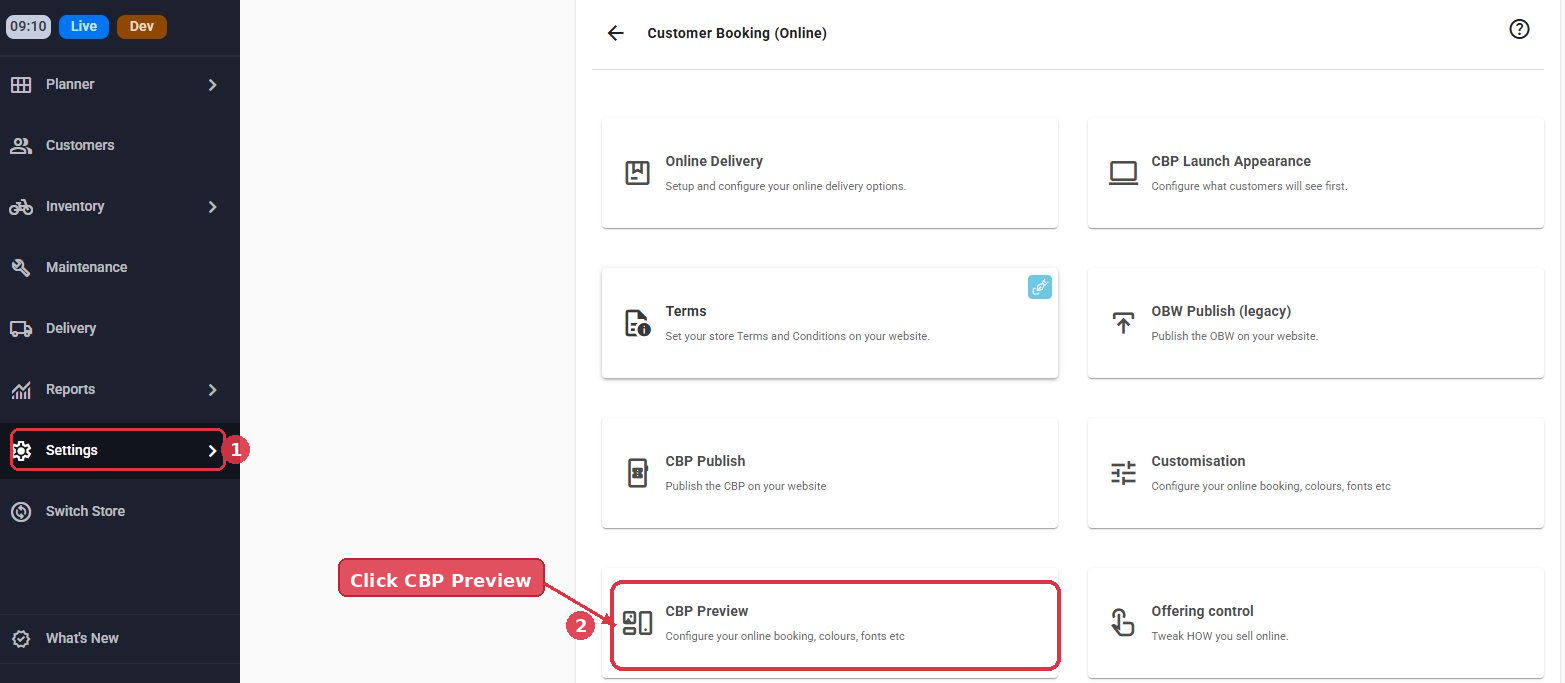
Navigate to Settings > Customer Booking (Online) > Customisation.
You will see the Customisation page with two tabs in the right-hand panel: Theme and Language. Click the Language tab to begin customising your text.
The Language panel
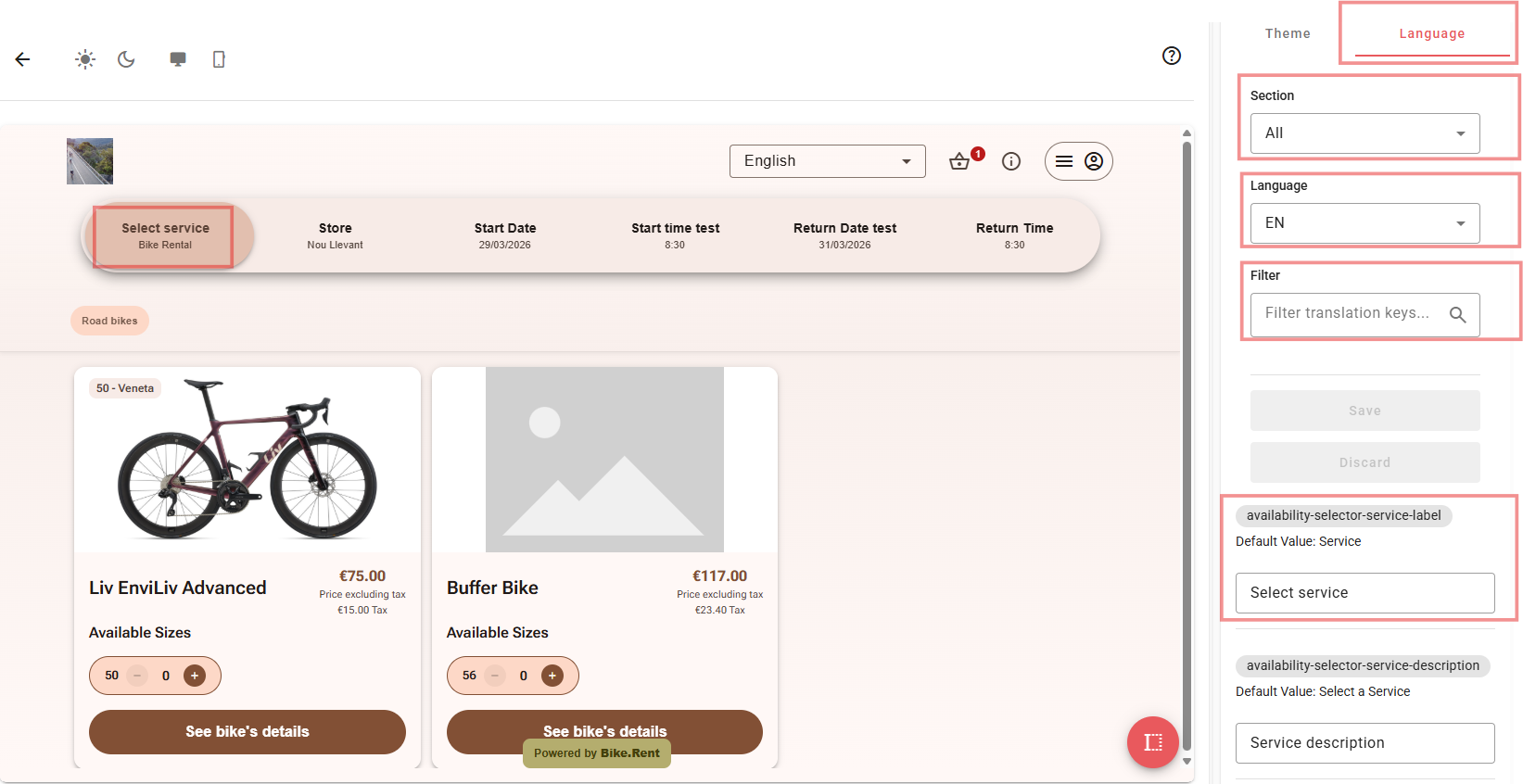
Once you click the Language tab, you will see the following controls in the right-hand panel:
- Section - A dropdown to filter translation keys by a specific section of the booking page (e.g. "Product-details"). You can leave this set to "All" to see every customisable text field, or select a specific section to narrow down the list.
- Language - A dropdown to select which language you want to edit (e.g. "EN" for English). If you support multiple languages, you will customise each one separately.
- Filter - A search box where you can type translation key names to quickly find a specific text field.
Below these controls, the panel displays each translation key with its default value and an input field where you can enter a custom value.
Two ways to find and edit text
There are two methods for locating and customising text on your CBP. You can use whichever you find more convenient, or combine both.
Method 1: Click directly on the booking page preview (Select Text Mode)
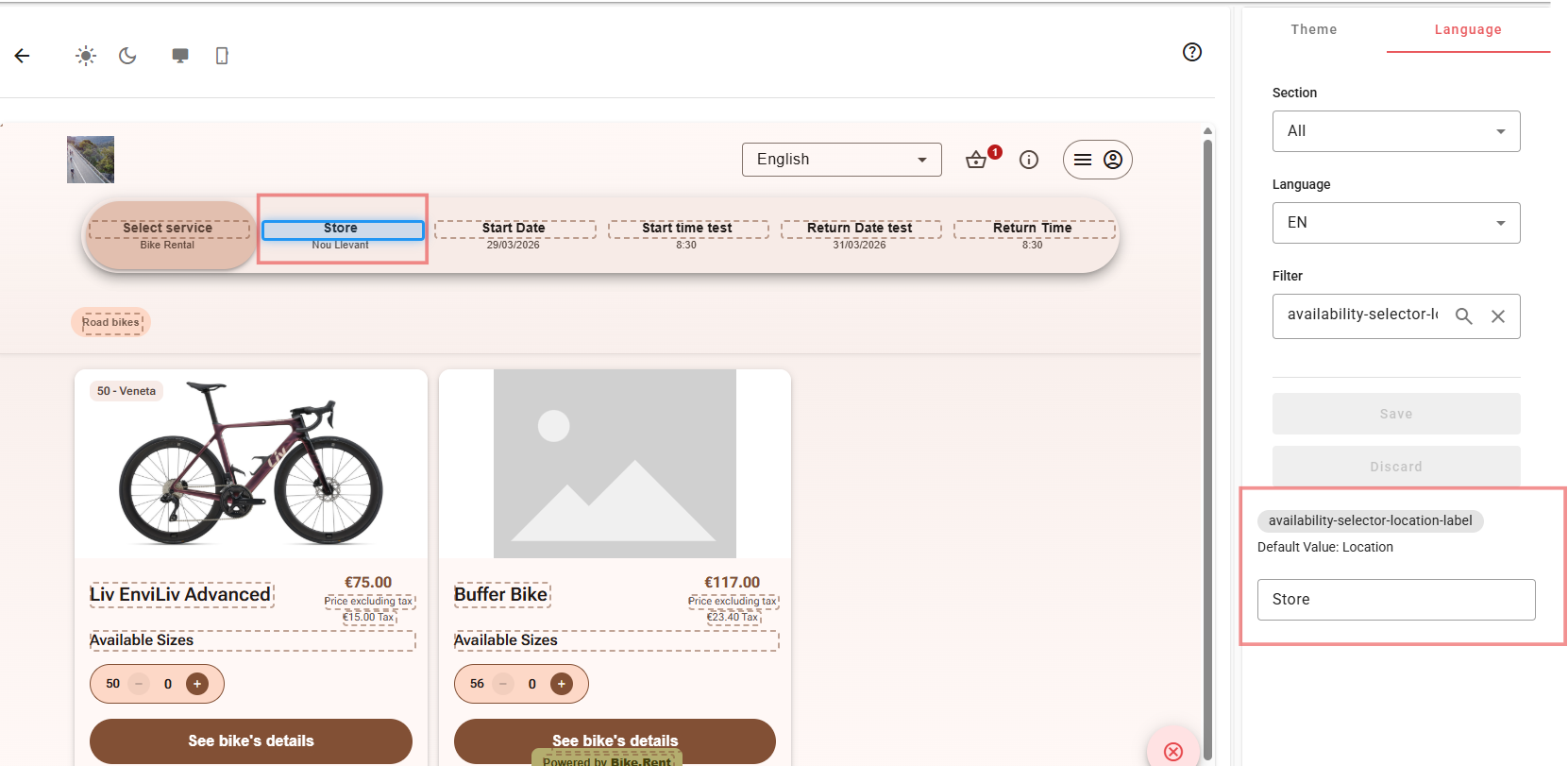
The Customisation page includes a live preview of your CBP on the left side of the screen. When the Language tab is active, the preview enters a select text mode - you will notice all customisable text elements on the preview are highlighted with dashed borders.
To edit a piece of text:
- Click on any highlighted text element in the preview (e.g. "Service", "View Details", "Available Sizes").
- The corresponding translation key will automatically appear in the right-hand panel, with the Filter field populated with the key name.
- The panel will show the key name (e.g.
availability-selector-service-label), its Default Value (e.g. "Service"), and an editable input field containing the current value. - Click into the input field, clear the existing text, and type your new custom value.
- As you type, the live preview updates in real time so you can immediately see how your change looks on the booking page.
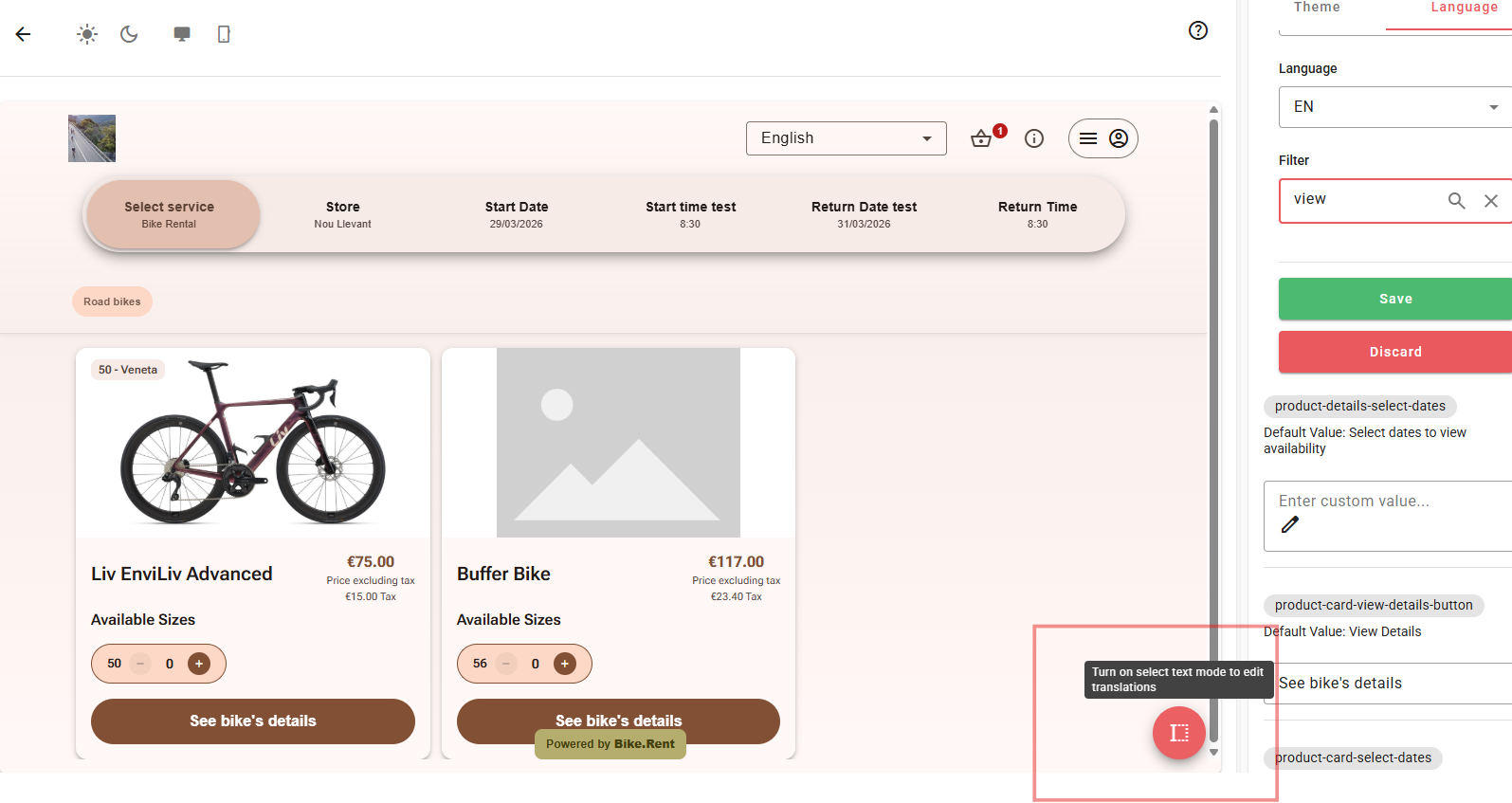
You can turn off select text mode by clicking the close (✕) button at the bottom-right of the preview area. A tooltip will remind you: "Turn off select text mode to edit translations."
Method 2: Use the Filter search box
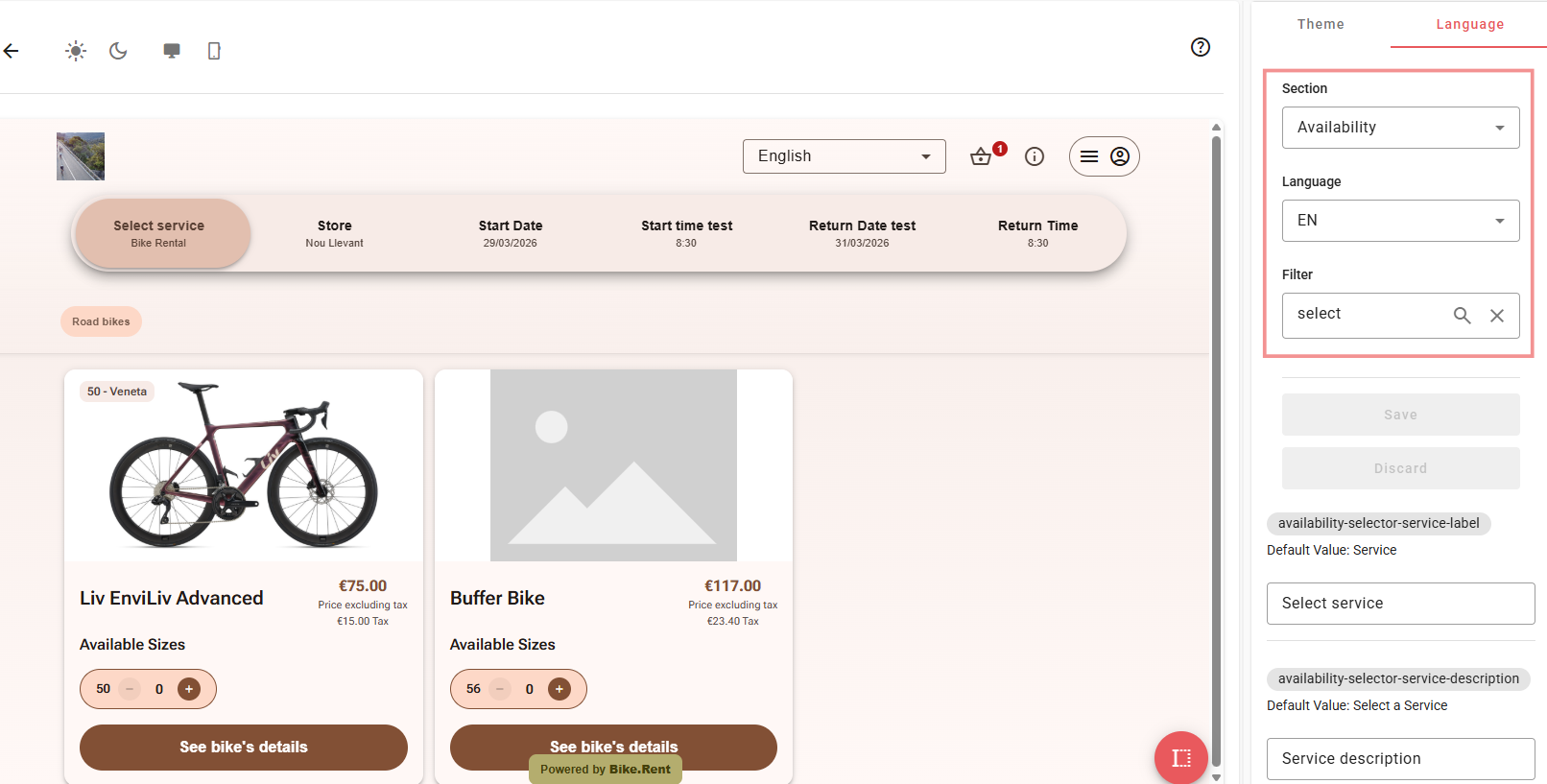
If you already know the name of the translation key or want to browse keys by keyword, you can type directly into the Filter search box in the right-hand panel.
- Type part of a key name into the Filter field (e.g.
product-details-summary). - The panel will show all matching translation keys.
- Click into the input field for the key you want to change and type your custom value.
This method is especially useful when you want to edit multiple related keys at once (e.g. all keys containing "cart") without clicking through the preview.
Editing a translation key
Each translation key in the panel shows:
- The key name - displayed in a pill/badge (e.g.
product-card-view-details-button). This is a system identifier and cannot be changed. - Default Value - the original text that appears if you don't set a custom value (e.g. "View Details").
- An input field - where you can type your custom replacement text. If the field shows "Enter custom value..." it means no custom value has been set yet and the default is being used.
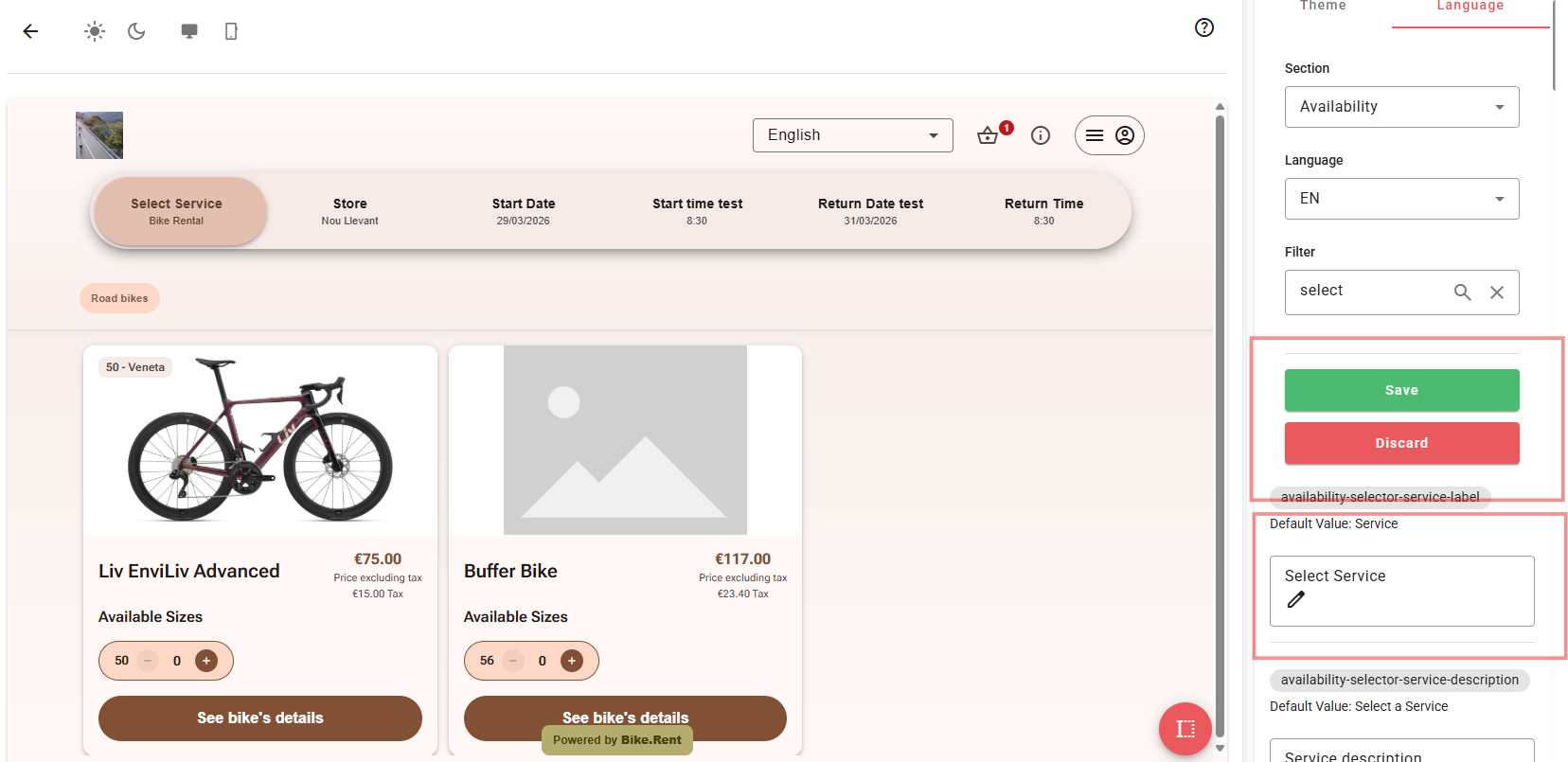
To make a change, simply click into the input field and type your desired text. The live preview on the left will update in real time as you type.
Saving and discarding changes
Once you have made changes to one or more translation keys, the Save and Discard buttons in the panel will become active:
- Click Save (green) to apply all your changes.
- Click Discard (red) to revert all unsaved changes back to their previous values.
Make sure to save your changes before navigating away from the page, as unsaved changes will be lost.
Filtering by Section
For larger booking pages with many customisable fields, you can use the Section dropdown to narrow down the translation keys shown in the panel. Available sections correspond to different parts of your CBP, for example, selecting "Product-details" will only show keys related to the product detail view (such as summary text, specifications labels, and the add-to-cart button).
This makes it much easier to work through customisations systematically, one section at a time, rather than scrolling through every key.
Example: Customising button labels
Here is a practical example of how you might customise text on your CBP:
Goal: Change the "View Details" button to say "See bike's details", and the "Add to Cart" button to say "Add this bike".
- Go to Settings > Customer Booking (Online) > Customisation and click the Language tab.
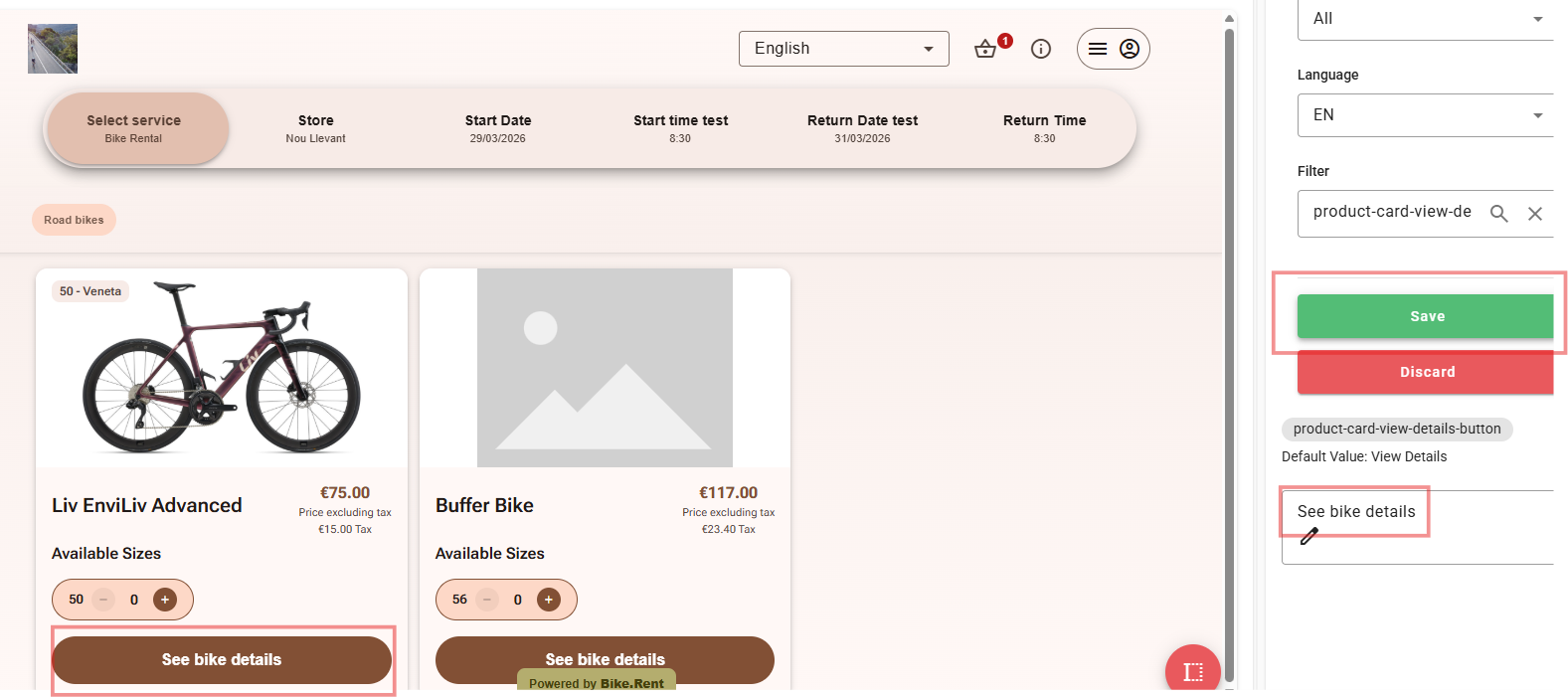
- Click on the "View Details" button in the preview, or type
product-card-view-detailsinto the Filter box. - In the input field for
product-card-view-details-button, type See bike details. - Next, click on the "Add to Cart" button in the product detail popup (or filter for
product-details-add-to-cart-button), and type Add this bike. - Click Save to apply your changes.
Your customers will now see your personalised button labels throughout the booking experience.
Tips
- Use the live preview - it updates in real time, so you can check your changes look right before saving.
- Work section by section - use the Section dropdown to focus on one area of the booking page at a time.
- Multi-language support - remember to switch the Language dropdown and customise text for each language you support. Changes are saved per language.
- Resetting to default - to revert a single field back to its default text, simply clear the custom value input field and save. The default value will be used again.
See Also
Notifications - multi language
Was this article helpful?
That’s Great!
Thank you for your feedback
Sorry! We couldn't be helpful
Thank you for your feedback
Feedback sent
We appreciate your effort and will try to fix the article