Location: Available via the Reports section in the BRM back office
example:
Access & Security
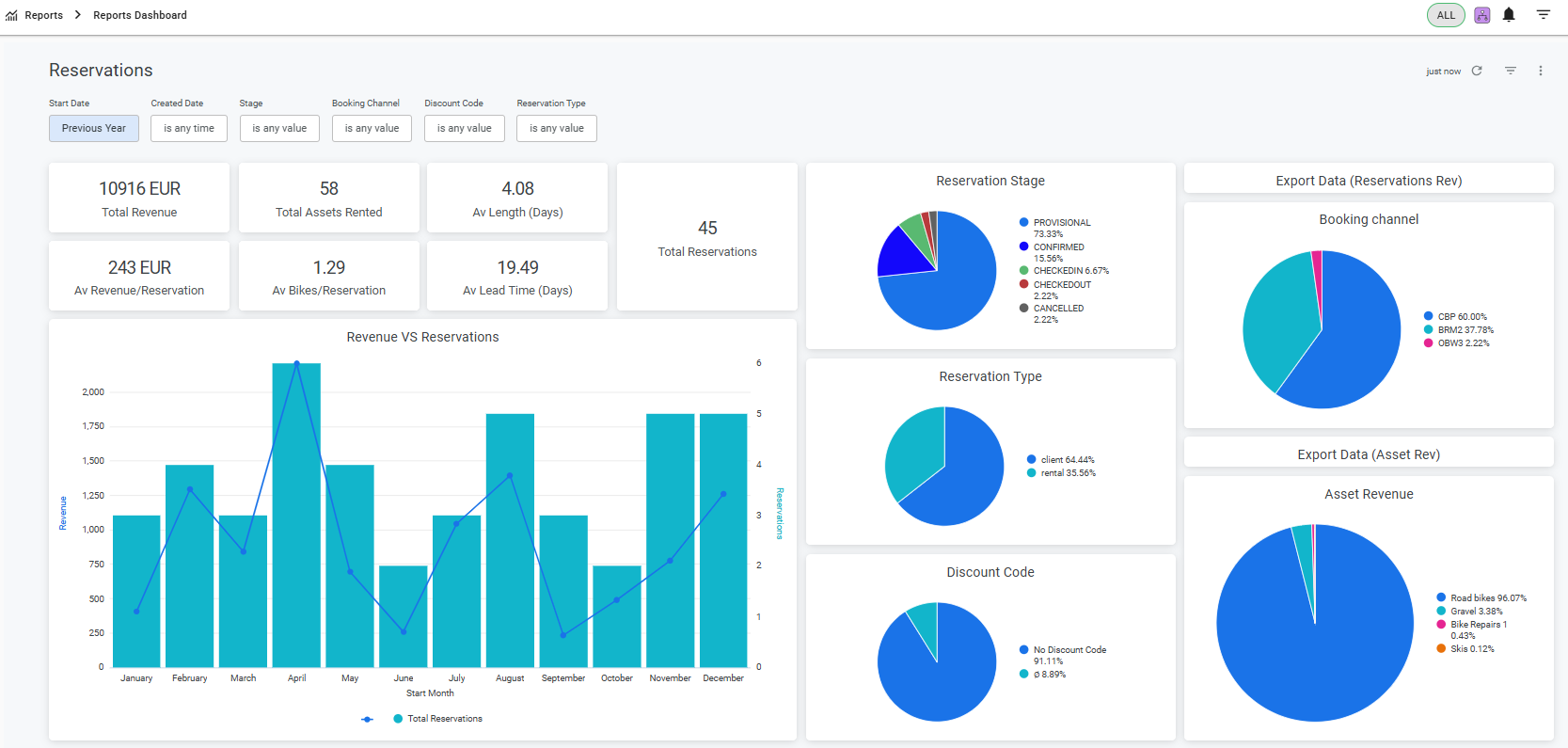
A Reports Dashboard card is visible in the Reports section of the back office

Clicking the card opens the embedded Looker dashboard, which loads directly within the BRM interface
Report data is restricted to the logged-in store. Multi-store view will be available as a premium feature.
Dashboard Overview
This dashboard gives you insights into your reservation activity and revenue performance. Each chart and metric is designed to help you take action and make informed decisions.
Filters
*Filter selection is applied by clicking the Update button. The dashboard does not auto-refresh on selection.
Filter | Use Case | Options | Default |
Start Date | View bookings starting during a specific time range | Preset & custom | This Year |
Created Date | View when bookings were made (e.g. last-minute vs. planned) | Preset & custom | Any time |
Status | Filter by latest reservation state (e.g. Cancelled, Checked In) | Multi-select | Any value |
Booking Channel | Analyse bookings by source (e.g. website, back office) | Multi-select | Any value |
Discount Code | Assess performance of discount campaigns | Multi-select | Any value |
Reservation Type | View based on internal classification (e.g. client vs rental) | Multi-select | Any value |
*All filters update every chart on the page when applied.
Dashboard Metrics & Value
Component | What does it do? | Calculation Logic |
Total Revenue | Understand your gross income from all bookings | SUM of totalPrice + delivery + pickup + extras |
Total Assets Rented | See how often your assets are being used | SUM of all assets included in reservations |
Average Length (Days) | Measure how long people are renting for | Total booked days / Total reservations |
Total Reservations | Track your volume of business | COUNT of unique reservations |
Av Revenue/Reservation | Assess customer value per transaction | Total Revenue / Total Reservations |
Av Bikes/Reservation | Monitor asset usage per booking | Total Assets Rented / Total Reservations |
Av Lead Time (Days) | Understand how far in advance bookings are made | Average of (Start Date - Created Date) across all reservations |
Charts & Graphs
Chart | What does it do? | Details |
Revenue vs Reservations | Compare volume vs income month by month | Monthly totals for revenue (bar) and reservation count (line); hover to view exact values |
Reservation Status | Understand how many bookings progress to each stage | Pie chart showing % of bookings in each status (Checked In, Confirmed, Cancelled, etc.) |
Reservation Type | Track types of customers or booking flows used | Pie chart showing breakdown of reservation types |
Booking Channel | Evaluate the performance of sales channels | Pie chart showing % of bookings from each channel |
Discount Code | Analyse which discount codes are effective | Pie chart showing % of bookings by discount code |
Asset Revenue NEW! (Jan 2026) | Inventory-level revenue analysis | Pie chart showing % of revenue by Asset Category: Analyse revenue across your inventory hierarchy, from high-level categories down to individual assets (Category → Product Family → Product Line → Asset Name). *For stores using GBAL, any bookings that are not yet assigned to a specific asset will be grouped under Generic. |
Additional Functionalities
Feature | What does it do? |
Export Data (Reservations Rev) | Download detailed reservation-level data for your own analysis or reconciliation; (see the example included at the end of this article) Recommended download option: Excel Spreadsheet (All Results) |
Export Data (Asset Rev) NEW! (Jan 2026)
| The export provides a detailed, item-level view of reservations and associated revenue. You can use this file to build your own analyses, pivot tables, or reports outside of the dashboard (see the example included at the end of this article). Recommended download option: Excel Spreadsheet (All Results) |
Drilldown | Click into monthly graphs to view higher level of detail behind the graphs |
Data Validation
The dashboard is fully aligned with your BRM data and supports consistent reporting:
When "Exclude Cancelled" is enabled, revenue and booking totals match the old “Rentals per Month” report
All calculation logic is consistent with other BRM reports and tools
Common questions & Troubleshooting
The embedded Reservations Dashboard is powered by our reporting service and securely connected to the main reporting platform on a session basis.
For security reasons,such as preventing data exposure if a device is left unattended, these sessions expire automatically after a period of inactivity. When this happens, you may see a message such as “Connection not authorised.”
How to resolve it
This will re-establish the session and restore access to the dashboard.
Some customers using Safari may experience issues accessing the embedded dashboard, even though it works correctly in other browsers.
This is typically caused by Safari’s cross-site tracking prevention, which can block the secure connection required to display the embedded reports.
How to fix it (Safari)
Open Safari → Settings (or Preferences)
Go to the Privacy tab
Disable the option “Prevent cross-site tracking”
Refresh the BRM page or log out and back in